Uber Has 5,000 MCP Tools. Can Agents Actually Find the Right One?

"Why did our error rate jump this morning?" An AI agent investigating that question needs access to useful evidence: logs, error metrics, and recent deployments. First, it has to find the tools that can retrieve them.
Uber's agents have a large catalog to navigate. In its October 1 engineering article, Uber reported more than 800 MCP servers and 5,000 tools behind its gateway. MCP, short for Model Context Protocol, gives agents a standard way to find and use software tools. A tool is an action an agent can request, such as searching records.
Uber lets agents discover those tools step by step. They can start with a small set of discovery commands and load the details they need as they go. That saves space in the model's context: the information available to it while it works.
Let's walk through Uber's published design, then follow a hypothetical incident request through the decisions an agent would need to make. This is an illustration of the approach, not an evaluation of Uber's gateway.
How an agent finds a tool at Uber
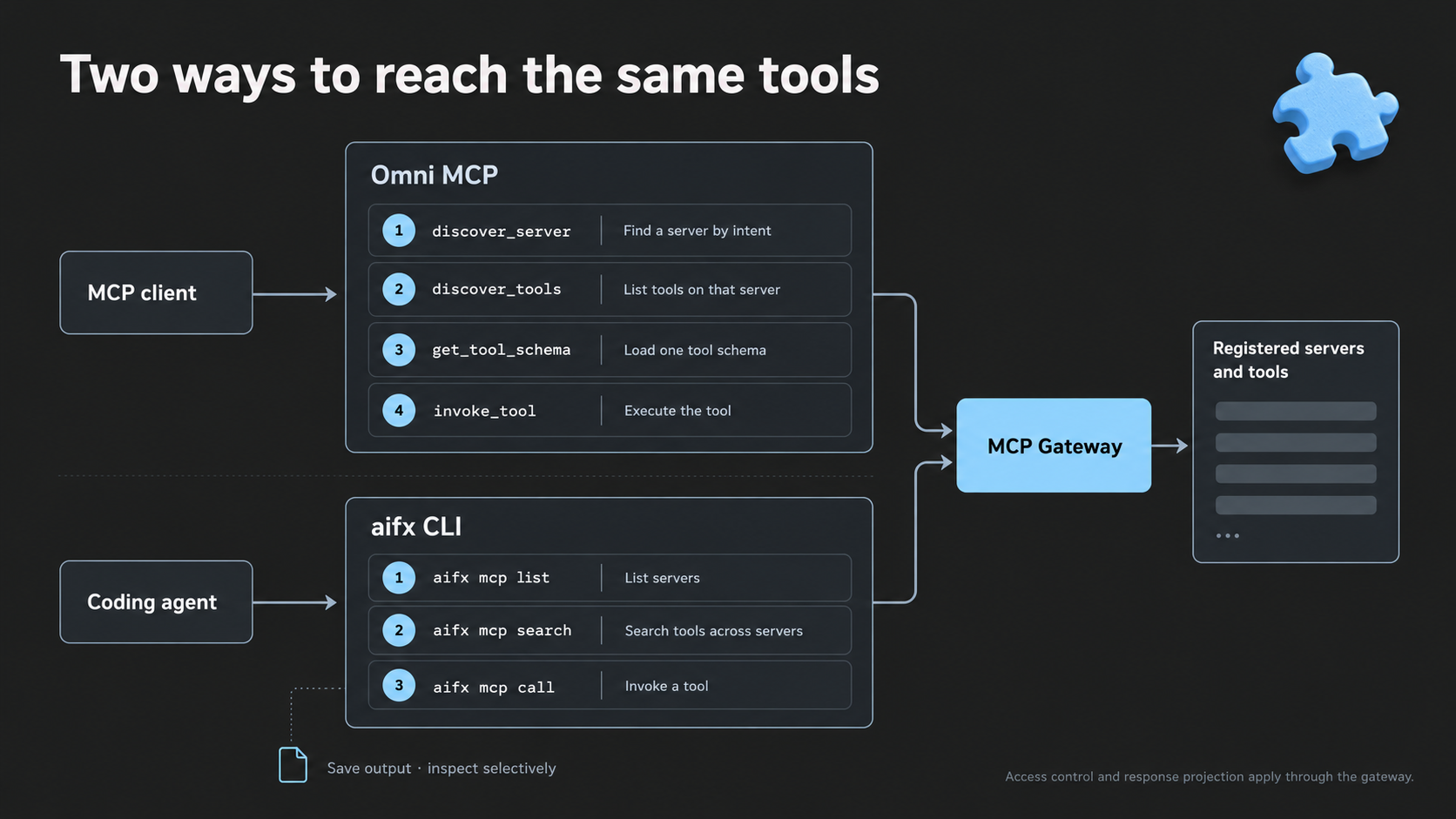
Uber's Omni MCP gives the agent four commands for finding and using tools. A server groups tools the agent can use; a schema describes the information a tool accepts.
| Operation | What the agent does |
|---|---|
discover_server | Find a server relevant to the task. |
discover_tools | Find the available actions on that server. |
get_tool_schema | Read how to use the chosen action, including its inputs. |
invoke_tool | Run the action with the required information. |
These four commands give the agent a way to navigate a much larger catalog. It loads the details of a selected tool when it needs them.
Uber also offers aifx, a command-line interface, or CLI. Coding agents can use it to list servers, search for tools across servers, and run them. Uber says this CLI approach is now its default for coding agents. The gateway lets agents request only the response fields they need. With the CLI, they can save a long response to a file and read the relevant parts. Uber describes both approaches here.
This is a useful way to keep thousands of tool descriptions out of the agent's context. Each search result or set of instructions still needs to help the agent take the next step. That is where the quality of discovery matters.
How the gateway connects tools to existing software
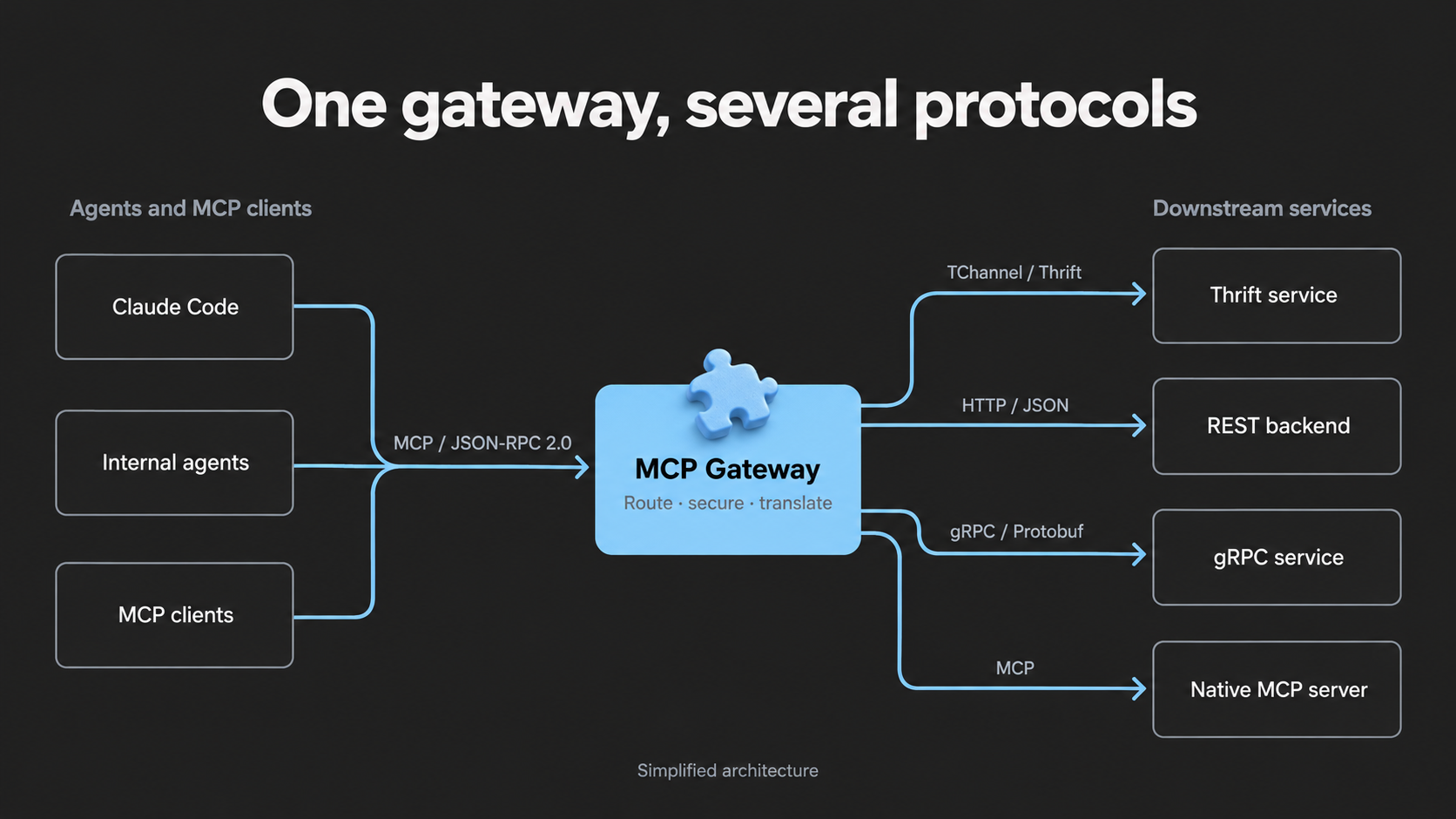
The gateway is a shared entry point between agents and Uber's software services. It keeps a catalog of tools and their owners, then sends each request to the right service. It translates requests and responses so teams can expose their existing APIs, the interfaces software uses to communicate, without rewriting those services for MCP.
Teams review tools before making them available
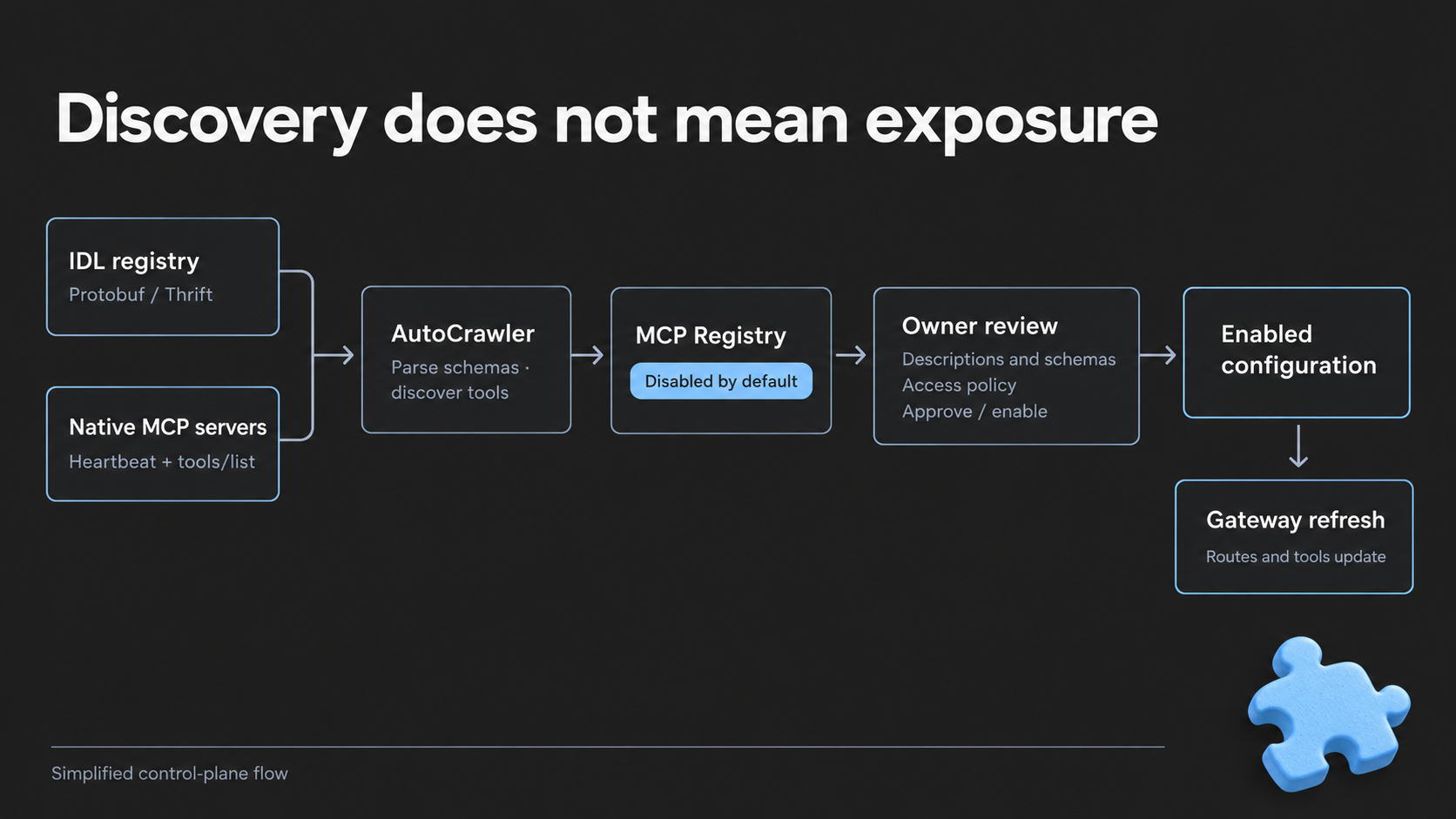
Uber's AutoCrawler scans existing API definitions and MCP servers to find tools and their instructions. New tools start disabled. The team responsible for a service reviews and enables them before agents can use them.
The gateway checks and routes each request
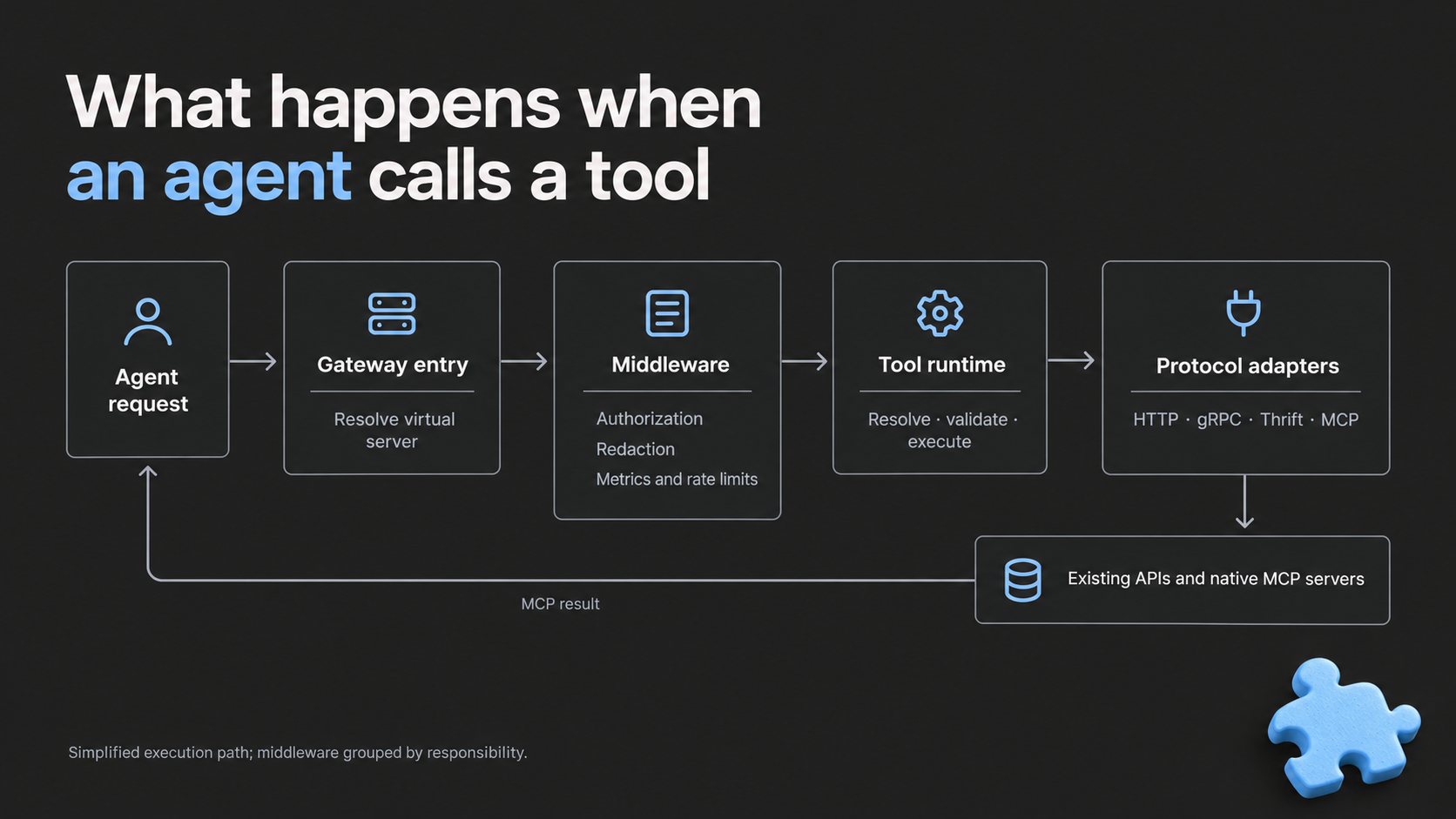
The gateway checks access permissions, sends the request to the service, and returns the result. Uber also describes shared protections for removing sensitive information from responses, limiting request rates, and recording activity for monitoring. Read Uber's architecture explanation.
Follow an agent through one incident request
Imagine checkout errors rose at 09:20 UTC. A teammate asks an agent to retrieve the error trend, matching logs, and any deployments made just before the spike. The server names, records, and results below are fictional. They illustrate the Omni MCP path; a coding agent using the CLI could search across servers directly.
1. Find a service that can provide the evidence
The agent searches for a server that can provide checkout errors. In our example, two matches appear: "Payments reporting," which counts transaction outcomes, and "Service monitoring," which provides application metrics and logs. It chooses Service monitoring.
That choice depends on the descriptions explaining what each server provides. Failed transactions can include normal payment declines; application errors are a different kind of evidence.
2. Choose the right action
Service monitoring offers an error-rate query and a log search. The first returns a metric over time; the second returns individual events. The agent selects both: the metric will locate the spike, and the logs will show the errors around it.
Tool descriptions make that difference visible before the agent retrieves any records. A successful request for a count alone would leave part of the teammate's task unfinished.
3. Learn what the tool needs
The agent reads the selected tools' schemas. Both require a service ID and a time range in UTC. The word "checkout" is not the required ID, so it uses a service lookup that returns svc_checkout, then requests the window from 09:10 to 09:30 UTC.
The lookup adds a request, but it supplies information needed to make a valid call. Counting every extra request as wasted effort would miss that distinction.
4. Retrieve and read the relevant results
The metric confirms a rise at 09:20. The first log response includes a marker for another page. The agent follows it and finds repeated payment-service timeouts on the second page.
It repeats discovery for deployment records and retrieves release D42, deployed at 09:18. The teammate now has an error trend, matching log entries, and a deployment made two minutes before the spike. Stopping after the first page of logs would have left out the timeout evidence.
This is useful evidence to investigate. The timing alone does not establish that the release caused the errors. The interface test checks whether the agent can retrieve the evidence; the diagnosis is a separate reasoning question.
How to test that journey
A team shipping an MCP server, CLI, or gateway can test a journey like this with records whose contents it already knows. For our example, check whether the agent retrieves the right service and time window, follows the next-page marker to the timeout logs, and finds the deployment record. Accept any sequence that obtains the required evidence.
Record whether the agent retrieved the expected evidence, which requests were rejected, and where it repeated searches or lookups. Inspect those interactions before attributing a problem to the interface: an agent can also ignore clear instructions or misread a complete response.
Repeat the tasks across the agents and clients people use, with different ways of phrasing the request, and after changes to tool descriptions, schemas, or search behavior. This checks whether people can continue relying on the interface as it changes.
We saw the value of following these steps in our earlier Twenty CRM tests: a small starting menu led some agents into a large catalog and extra searches or file reads. Later builds we tested largely resolved that original discovery issue. That experience motivates looking at the whole interaction; it does not establish the same problem at Uber.
Where Malm fits
At Malm, we evaluate whether agents can use your MCP or CLI to complete real user tasks: find suitable tools, make accepted requests, and retrieve the information the task requires. We examine where agents get stuck and what they receive at each step, so teams can investigate changes to descriptions, inputs, or responses.
Uber's gateway design shows how a large catalog can be made available without loading it all at once. Evaluating the agent's journey helps a team see how well that access works for its users. Request an agent interface evaluation from Malm.
Sources and figures
- Uber Engineering: Designing MCP Gateway; the architecture described here; published October 1, 2026.
- Twenty issue #26368; the initial discovery findings.
- September 28 follow-up; the later observations and their scope.
The cover was created for this article. Architecture figures are AI-assisted, simplified redraws based on the credited Uber diagrams, using Malm's charcoal-and-blue visual language. They are explanatory illustrations, not screenshots of Uber's internal tools.